
Node.js version on Azure WebSites
When running node.js on Windows Azure there is a few black boxy things. One thing that I didn’t manage to find docs for is how the node verstions work. That doesn’t mean there is no docs, just that I haven’t found them. So I tested arount a little. To test this stuff I did a little express.js app that can be found here: https://github.com/nippe/node-versions-on-azure/. What it does is on the /versions route return te process.env.WEBSITE_NODE_DEFAULT_VERSION and process.version. Look at https://github.com/nippe/node-versions-on-azure/blob/master/routes/index.js#L5 for detail. There is two tags (appsetting-version and package-version) in the repo to illustrate different approaches.
Here is what I learned.
Available versions
To find out which versions of the node.js runtime that are available on azure I found tow ways.
Create a Azure Website
If you create a new Azure WebSite and navigate to the configuration tab you’ll se that the provisioning process created an app setting by the name of WEBSITE_NODE_DEFAULT_VERSION which I think always get the value of the latest available version present when the site is created.

Azure Site Extensions
Another more comperahensive way to get a hold of available versions is to go to the Site Extensions site, also called Kudu.
If your website has the url http://deletemesoon.azurewebsites.net, you just insert a scm in the url http://deletemesoon.**scm.**azurewebsites.net
Hit the Runtime Versions link.
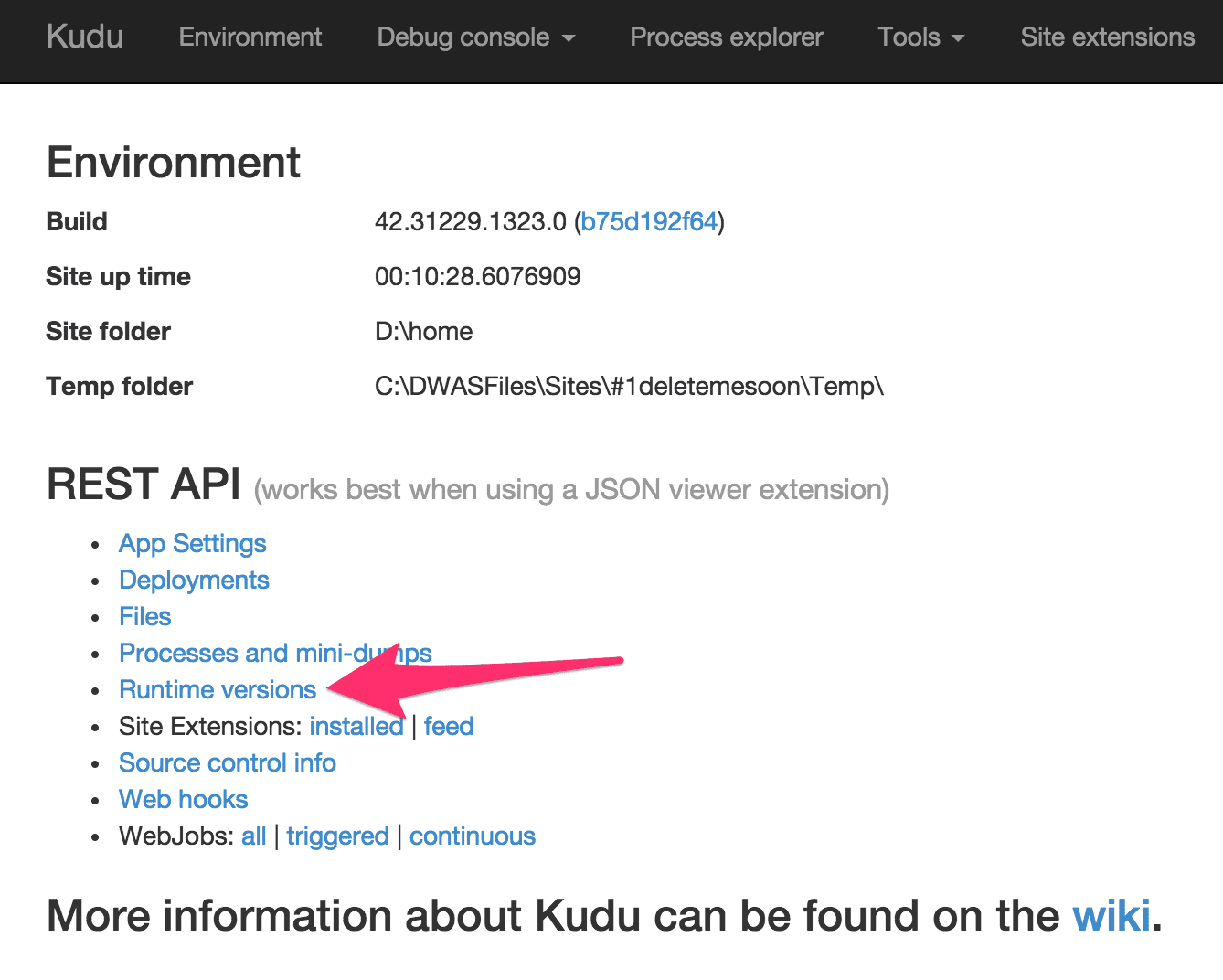
Which gives you a JSON representation of available versions:
| { | |
| "nodejs": [ | |
| { | |
| "version": "0.10.18", | |
| "npm": "1.3.8" | |
| }, | |
| { | |
| "version": "0.10.21", | |
| "npm": "1.3.11" | |
| }, | |
| { | |
| "version": "0.10.24", | |
| "npm": "1.3.21" | |
| }, | |
| { | |
| "version": "0.10.26", | |
| "npm": "1.4.3" | |
| }, | |
| { | |
| "version": "0.10.28", | |
| "npm": "1.4.9" | |
| }, | |
| { | |
| "version": "0.10.29", | |
| "npm": "1.4.10" | |
| }, | |
| { | |
| "version": "0.10.31", | |
| "npm": "1.4.23" | |
| }, | |
| { | |
| "version": "0.10.32", | |
| "npm": "1.4.28" | |
| }, | |
| { | |
| "version": "0.10.5", | |
| "npm": "1.2.18" | |
| }, | |
| { | |
| "version": "0.6.17", | |
| "npm": "1.1.21" | |
| }, | |
| { | |
| "version": "0.6.20", | |
| "npm": "1.1.37" | |
| }, | |
| { | |
| "version": "0.8.19", | |
| "npm": "1.2.10" | |
| }, | |
| { | |
| "version": "0.8.2", | |
| "npm": "1.1.36" | |
| }, | |
| { | |
| "version": "0.8.26", | |
| "npm": "1.2.30" | |
| }, | |
| { | |
| "version": "0.8.27", | |
| "npm": "1.2.30" | |
| }, | |
| { | |
| "version": "0.8.28", | |
| "npm": "1.2.30" | |
| } | |
| ] | |
| } |
Set Version
Allright, I have the version – now what? How do you set it?
Well there is two alternatives.
App Setting
You can used the atomaticly provisioned app setting WEBSITE_NODE_DEFAULT_VERSION and set it to a value of you choise.
package.json
You can also define it in package.json under the engine attribute
...
 ”engines”: {
    ”node”: ”0.10.32”
 },
 ...
Here is an example package.json file:
| { | |
| "name": "node-version", | |
| "version": "0.0.0", | |
| "private": true, | |
| "scripts": { | |
| "start": "node ./bin/www" | |
| }, | |
| "engines": { | |
| "node": "0.10.32" | |
| }, | |
| "dependencies": { | |
| "express": "~4.9.0", | |
| "body-parser": "~1.8.1", | |
| "cookie-parser": "~1.3.3", | |
| "morgan": "~1.3.0", | |
| "serve-favicon": "~2.1.3", | |
| "debug": "~2.0.0", | |
| "jade": "~1.6.0" | |
| } | |
| } |
The thing to be alert on is that package.json overrides WEBSITE_DEFAULT_NODE_VERSION settings. So if we set node: 0.10.32 in package.json and the app setting to 0.10.29. Package.json will set the tone.
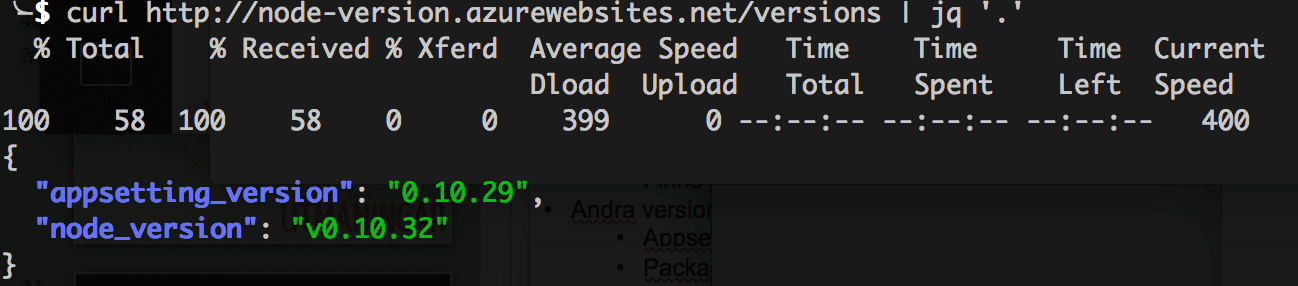
One little wierd edge case is that if we use fuzzy matching in package.json:
”engines”: {
”node”: “^0.10.24″
}
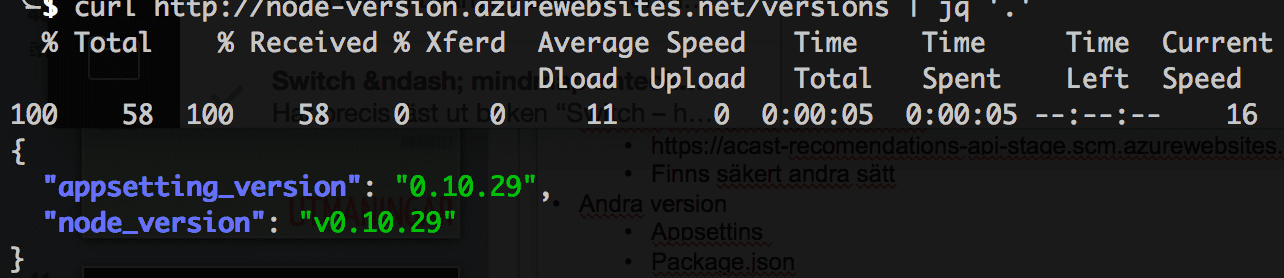
And we set the app setting to 0.10.29 (not the latest available version). The appsetting seems to set a cap for the version.
Tags: azure, development, node.js